How to let AI control Blender safely (MCP for Blender tutorial)
Connect Claude or Cursor to a live Blender session with MCP for Blender, plus the safety policy that keeps production files intact.
Most teams start the same way: they ask a model to write bpy code, paste it into Blender's scripting tab, and run it. It works often enough to be exciting, and fails often enough to be terrifying.
This tutorial walks through the version that survives contact with production work: a Blender session wired to an MCP server, with a policy that decides in advance what an agent is allowed to do.
What "safe" actually means here
Safety in this context is not a single switch. It is four properties working together:
- Context before action. The agent reads the scene before it changes it.
- Typed operations. Tools accept schemas, so invalid input is rejected at the boundary.
- Reversibility. Destructive operations create a checkpoint first.
- Attribution. Every call is recorded with its arguments and result.
If any one of those is missing, you are back to pasting scripts and hoping.
Step 1: install the addon
Install the DCCMCP addon into Blender and enable it under Preferences → Add-ons. The addon opens a local control channel bound to 127.0.0.1; it does not listen on a public interface unless you explicitly configure remote transport later.
blender --command extension install dccmcp_blender
Step 2: start the MCP server
Run the server from the project directory you want the agent to work in.
npx dccmcp-blender@latest serve --port 7331
At startup the server discovers the running Blender session and publishes its tool list. You should see tools like scene.inspect, object.create, geometry_nodes.set_input and render.capture.
Step 3: register the server with your agent
Add the server to your MCP client. The same entry works for Claude Desktop, Claude Code and Cursor:
{
  "mcpServers": {
    "blender": {
      "command": "npx",
      "args": ["dccmcp-blender", "serve"]
    }
  }
}
Restart the client and confirm the tools are listed. A good first prompt is deliberately boring:
Inspect the current Blender scene and tell me the collection structure, object counts and unit settings. Do not modify anything.
If the agent reports accurate structure, your wiring is correct. If it invents object names, the server is not connected to the document you think it is.
Step 4: set the policy before you need it
This is the step almost everyone skips, and it is the one that determines whether you sleep well.
dccmcp policy set --profile studio-default
dccmcp policy allow scene.inspect --auto
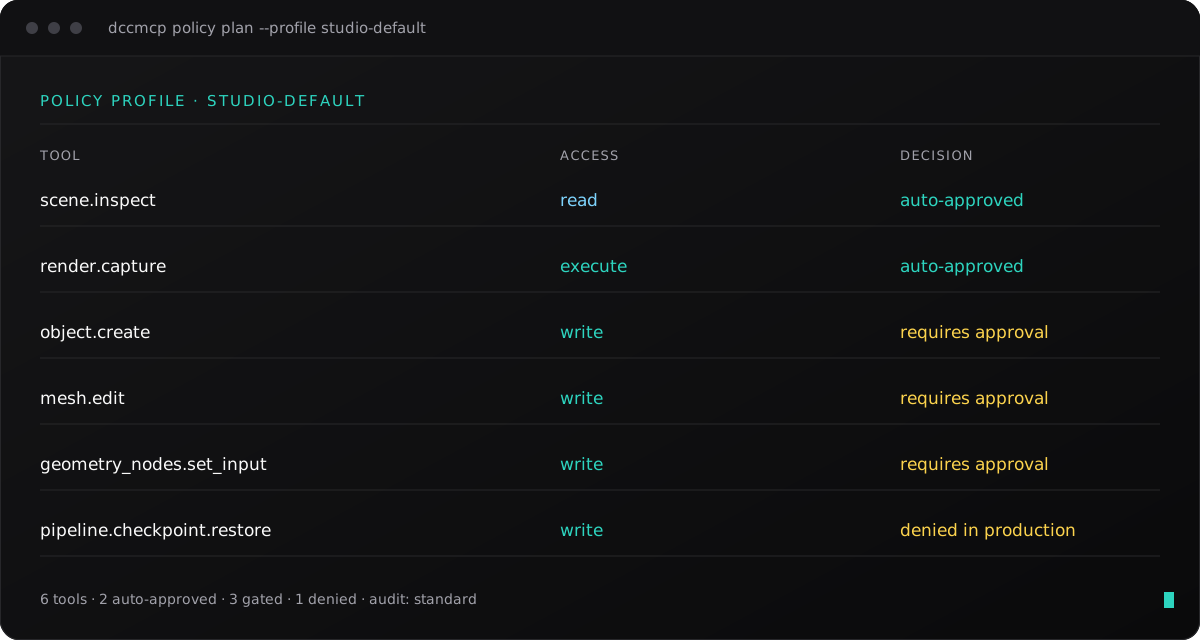
dccmcp policy require-approval object.create mesh.edit geometry_nodes.set_input
dccmcp policy deny pipeline.checkpoint.restore --in production
The studio-default profile starts read-only. Write tools are denied until you approve them, and restore operations are blocked outright in files matching your production naming pattern.
Step 5: run a real task
With the plumbing done, the workflow becomes a normal conversation. A useful pattern is to ask for a plan first, then approve execution:
Look at the
Facade_Modulecollection. I need three variants where the window inset is 20 mm, 40 mm and 60 mm. Show me the plan before you change anything.
The agent inspects, proposes a sequence of validated tool calls, and waits. You approve, it builds three variants, then calls render.capture so you can see the result without opening the file yourself.
The failure modes this avoids
| Old approach | What breaks | With a policy layer |
| --- | --- | --- |
| Model writes bpy blind | Guesses object names, fails mid-operation | scene.inspect supplies real structure |
| Operator runs on active object | Wrong object modified silently | Tools take explicit targets |
| Destructive call with no undo | Scene corrupted, work lost | Checkpoint created first, restore available |
| Nothing logged | No idea what changed | Every call recorded with arguments |
| Agent runs unattended | Unbounded blast radius | Approval gates and deny rules |
Where to go next
Once a single session is reliable, the same tool surface carries into background mode, which is how most studios generate variants across a farm. From there the interesting work is not "can the agent drive Blender" but "which parts of our pipeline should it be allowed to touch" — and that is a policy question, not a modeling one.
Read the MCP for Blender integration page for the full tool list, or start with the quickstart if you would rather install first and read later.
Try it on your own files
Install an integration, keep the read-only default, and see what your agent does with real scene state.